Database input Component
Setup

Setting up a connection to your DB are out of scope of Support
Start a new Workflow by dragging the Database Component from the Input menu onto the canvas.
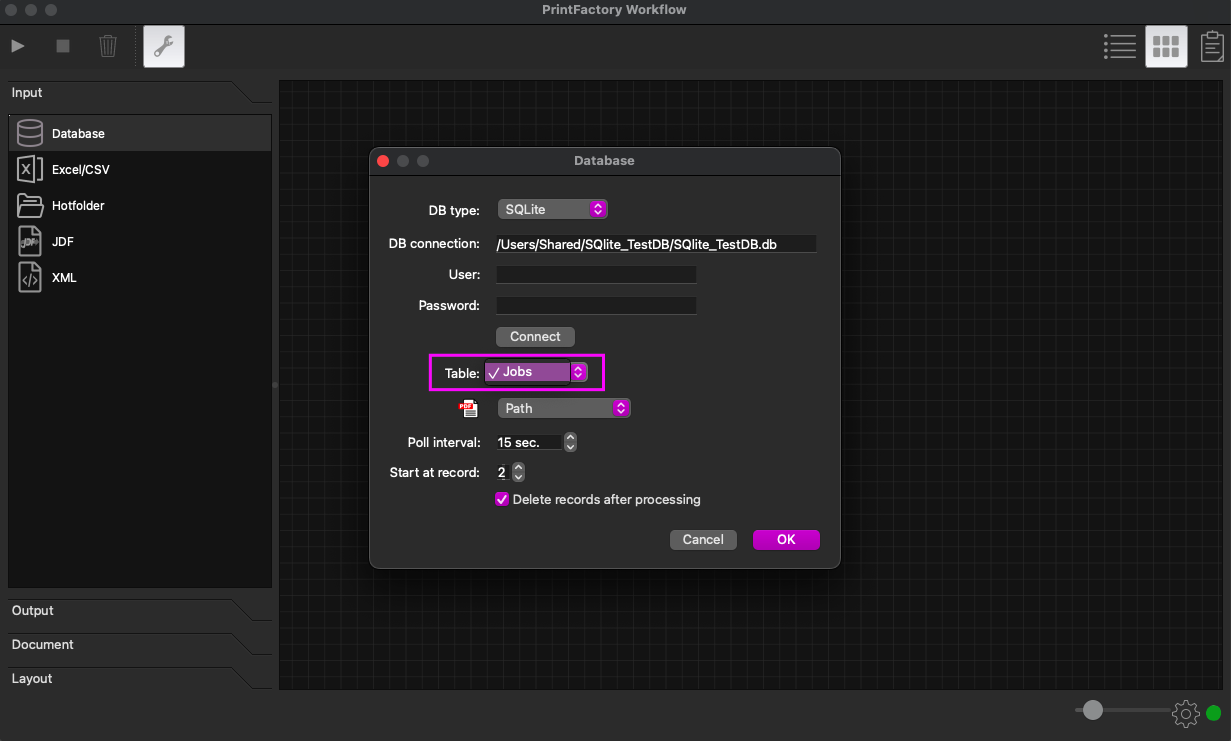
Following screen will appear.
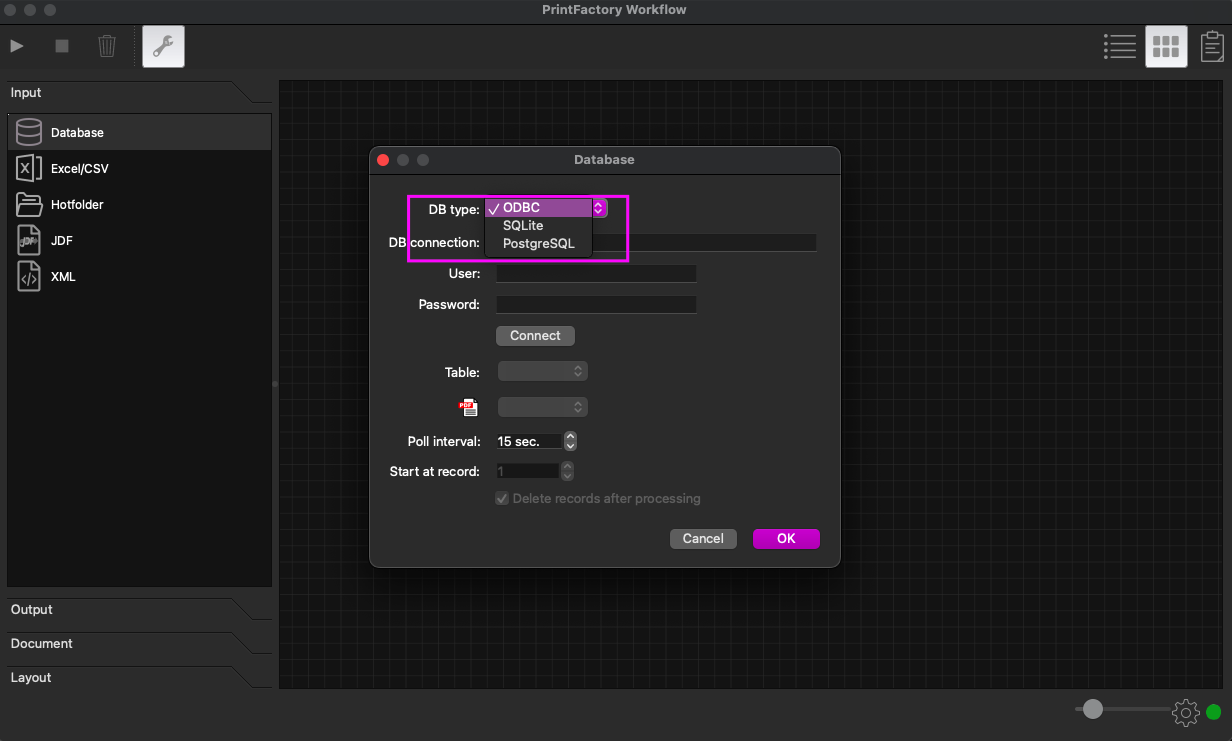
DB type
ODBC, SQlite and PostgreSQL are supported DB types. Choose the one you want to connect to.
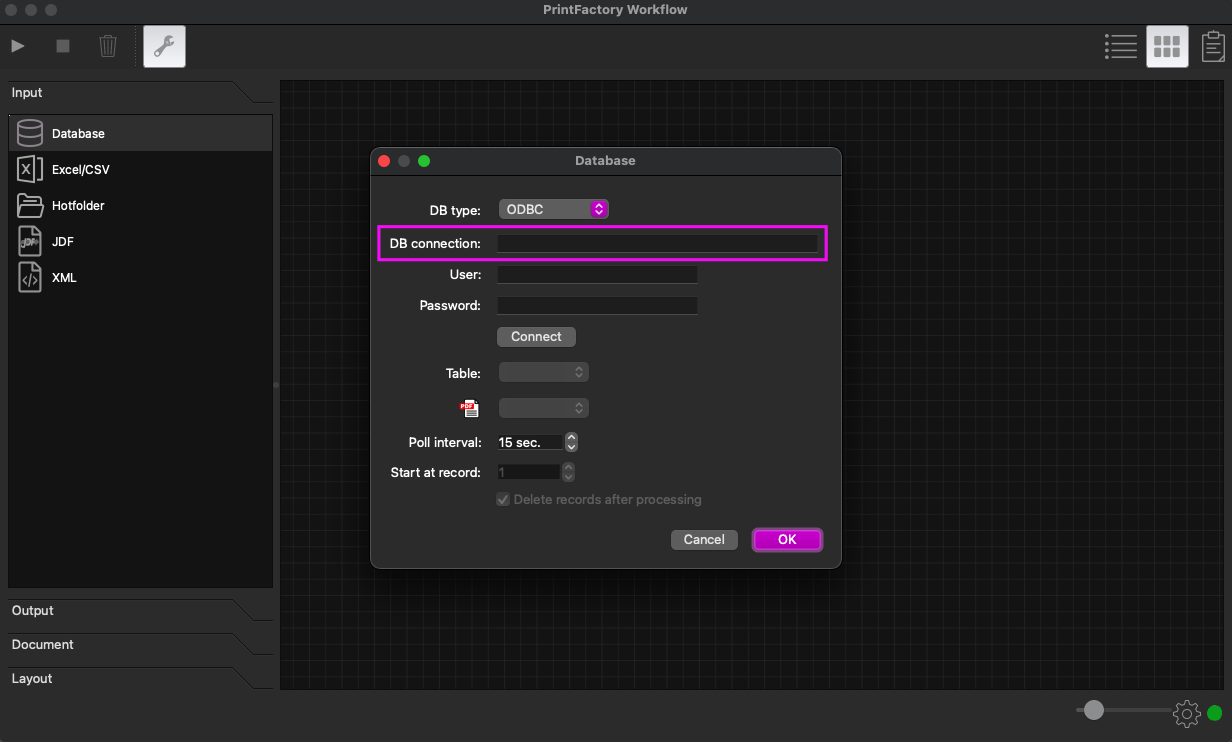
DB connection
Here you have to enter how we can connect to your DB.
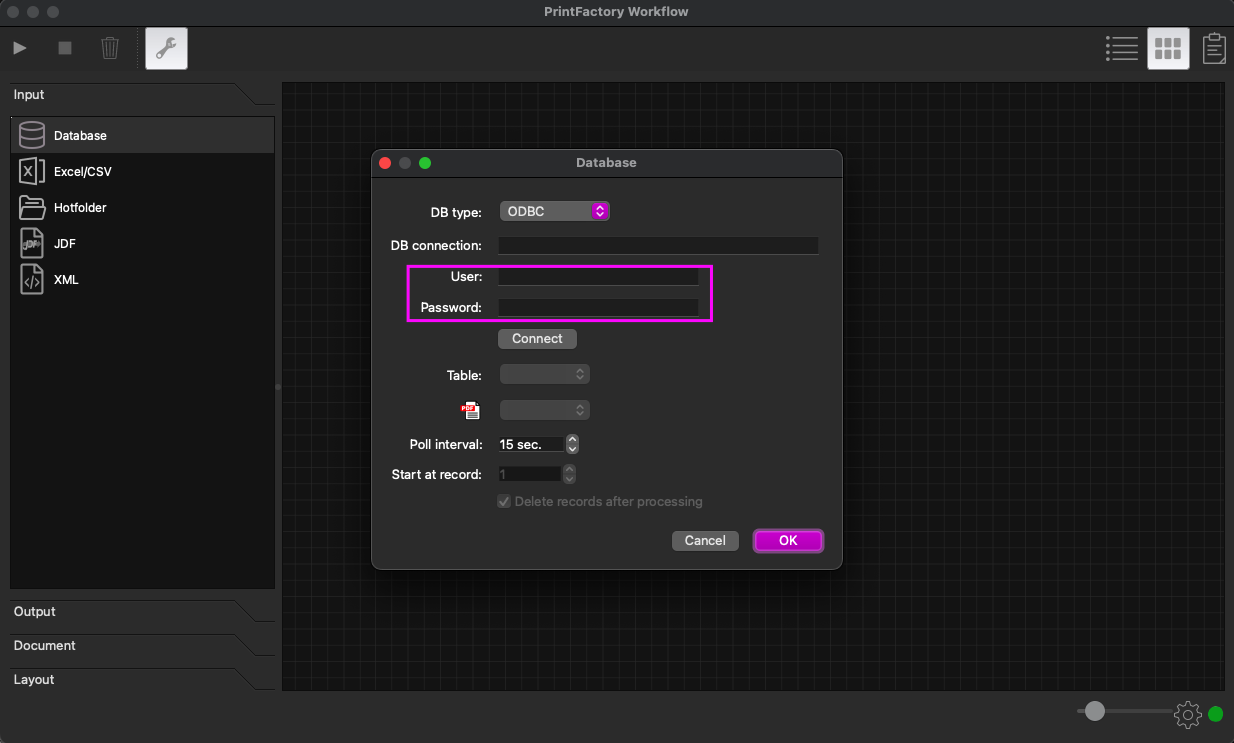
User and Password
Enter Username and Password of your DB requires it.
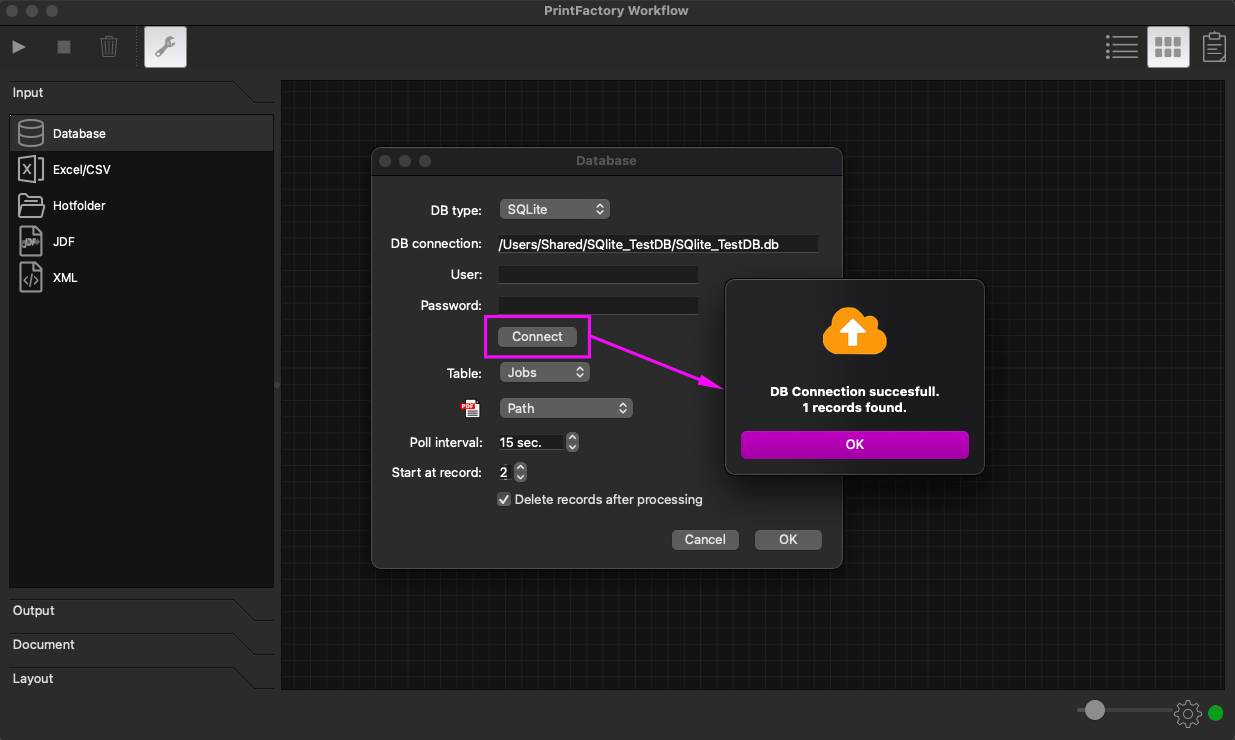
Connect
After clicking Connect it shows a message if successful or an error if unsuccessful.
Table
After successful connection you can you can select the table in your DB you want to use. Mandatory in your table is a direct downloadable path to your Document. This can be a path or an URL. All data you want to use must by in the same table. All other columns in your table will be stored as UserData which can be used as Keys in variables. Every row in the Table will by treated as one Job in Workflow.
PDF icon
Select here the columns in your table which contains the path to the Document.
Poll interval
How often the DB is checked for new records.
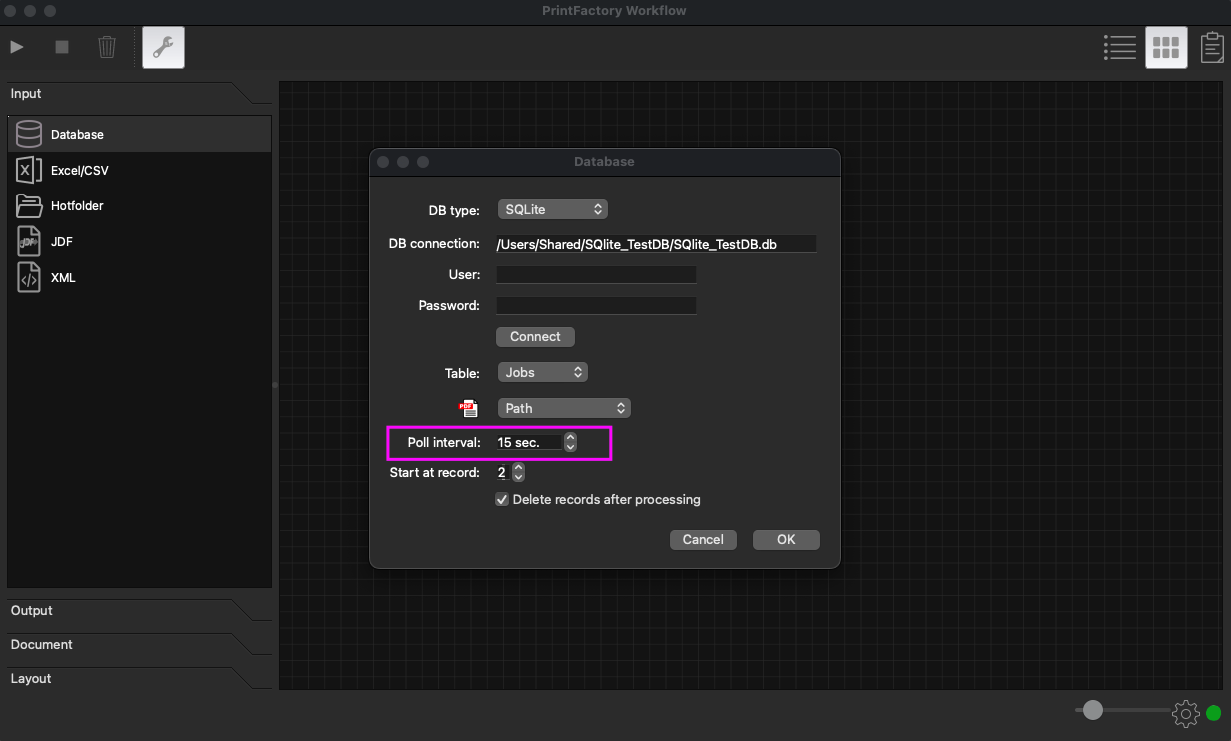
Start at record
While setting up this Component you decide at which row we should start. If you 'Delete records after processing' it will start again at the row you have set. When you don't delete records after processing the number will automatically change to the last row processed and starts from there when polling again. This number can be set once while setting up this component. If you want to change you have to re-setup this Component.