Measuring PMM data using the built in Epson spectrophotometer

Measuring PMM data using the built in Epson spectrophotometer

Measuring PMM data using the built in Epson spectrophotometer

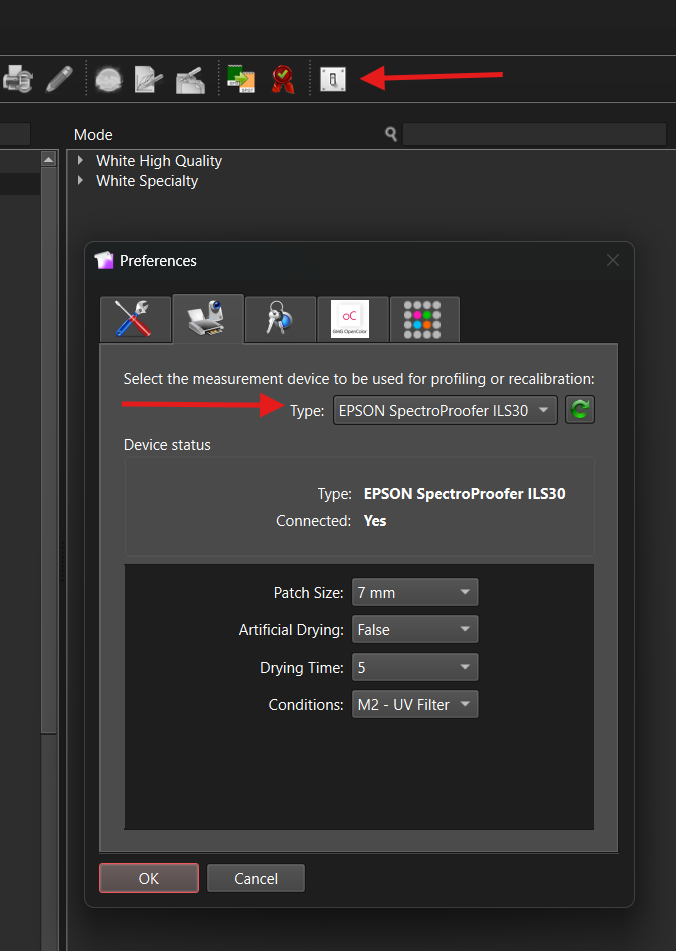
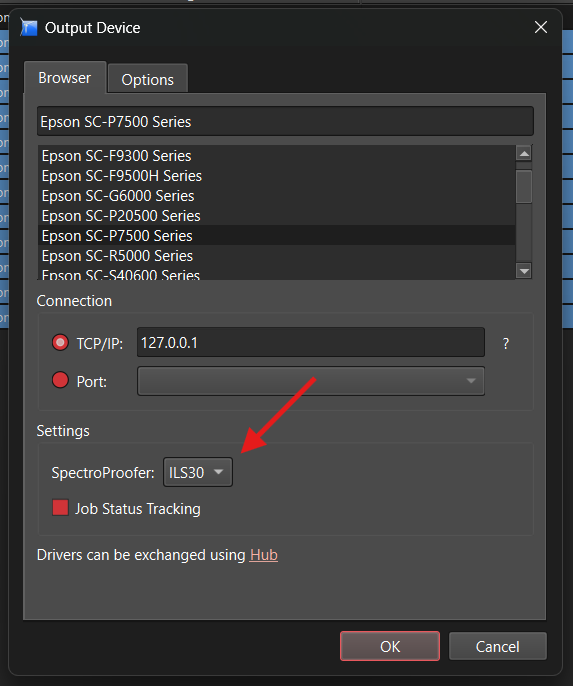
When creating a PMM using Epson's built in spectro, make sure you have selected the correct spectro in your Calibrator preferences and in the driver options, found in the RIP. See images attached. 

Receiving the measurement data

When a measurement chart has been sent, the printer will automatically start measuring the chart after it finished curing. Once the printer has finished measuring, click 'measure' in the opened Calibrator window. This will result in Calibrator receiving the measured data from the printer. 

Note: This works the exact same for measuring the Final Gamut chart, any profile tuning / refining and certifying proofs & jobs. 
 
    • Related Articles

    • How to measure with i1 devices

      Setting up connection and settings Make sure you’ve selected the correct device, as there are several different options for i1 devices. Once the device is connected, check that the settings are correct under Calibrator > Preferences > Measurement ...
    • How to use the Barbieri Swing QB with PrintFactory RIP

      Registering and Updating Firmware Download Barbieri Gateway and register the device. Check for the latest firmware, which is self-explanatory through the software. It automatically recognizes unregistered devices upon connection Preparing for ...
    • How to use the Barbieri LFP QB with PrintFactory RIP

      Registering and Updating Firmware Download Barbieri Gateway and register the device. Check for the latest firmware, which is self-explanatory through the software. It automatically recognizes unregistered devices upon connection. Preparing for ...
    • Epson EMX

      What: Epson provides EMX profiles containing the settings and ICC profiles for many Media & Mode combinations for their printers. Those EMX files can be downloaded using the Epson Edge Dashboard. After setting it up you will have access to the ...
    • Creating and Tuning of DeviceLink profiles

      About DeviceLink profiles To improve the color accuracy of your proofs, you can create and use a DeviceLink profile. A DeviceLink is a link between the reference profile and the printer profile of your queue. The DeviceLink profile directly ...