Concept of Workflow and how it works
Concept
Workflow is a Prepress automation tool which gives you the opportunity to perform actions on Documents by the use of available Component. You decide which action is performed in which order by the use of connectors. A Component generates a result which is
'Ok',
'Fail' or
'Fixed'. By placing your mouse pointer into one of these results and clicking an arrows is generates which your can drag to the next Component you want to be the next step. By selecting a connector and clicking backspace or deleted you can remove a Connector. The video below shows how you can do this.
Static and Variables
Each component, expect the
Input Components, have a Static and Variable tab in the UI. When Workflow is processing a Document it applies Static values first, but over rights them when Variables are set.
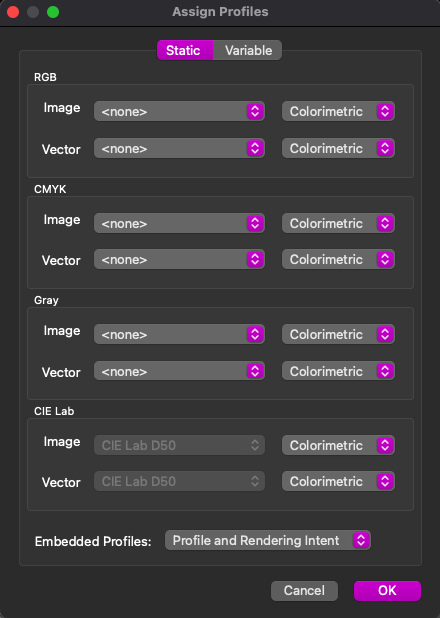
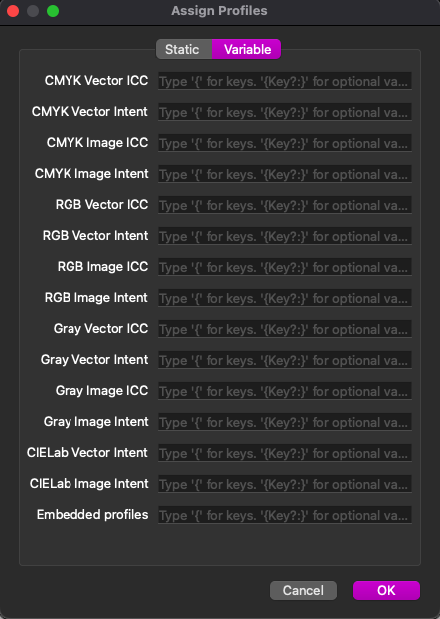
Variables
Variables can be created in the
Input Components. Input Components as XML, Excel/CSV and Hotfolder combined with RegEx will auto populate a list of Keys, which have been mapped in this Component, when you start typing a '{' in the Variable field.
It also shows a tooltip in the bottom of the UI.Using
Input Components as DB, JDF or Hotfolder in combination with XML. These types of input can have /UserData elements in the by Workflow generated Job.xml. Job.xml is available in the UI of Workflow. Keys actually always refer to the elements in the /UserData. In this case you have to set the Value of the Key yourself like {Key:YourElementInUserData}. It's also possible to use a '?' behind Key like {Key?:*}. This way it will use the Variable if available otherwise it will apply the Static value.
Related Articles
Creating a new Workflow
To create a new Workflow you first need to open the Workflow application. On a Windows PC, you will find it here: C:\Program Files\PrintFactory, and on macOS, here: HD/Applications/PrintFactory. After opening the application you need to click the ...
Workflow Menu
Windows You can find the menu here. Mac You can find the menu here. Preferences Connection Concurrent jobs Number of Jobs Workflow may process simultaneously. Each CPU (core) on your Computer can do 1 Job at a time, so maximum to be set to the amount ...
Workflow Debug mode
Debug mode can be enabled in your Workflow to enable you to check the Job XML & file at each step in the Workflow. To enable debug mode, right click the Workflow name and click "Enable Debugging" When the debugging is enabled, you will see the little ...
Workflow - Working with Variables
Workflow allows you to parameterize the settings of each component in the flow and make decisions optional using variables: There are 3 different types of variables: Keywords: User data generated from XML, JSON, XLSX, CSV, Database or RegEx Job ...
Backing up and Importing a Workflow
For customers sending in a backup of a Workflow for testing, unzip the backup they send you and place in the following folder location: PC: C:\Users\Public\PrintFactory\Workflow Mac: Users/Shared/PrintFactory/Workflow How to backup a Workflow: